
Edit SVG online, label by label
Pick one of our example figures or open your own SVG file. Click a label to retype it, change colours and font size, move parts, then download a PNG or the edited SVG. Editing is free and needs no account.
Edit an example figure or open your own SVG
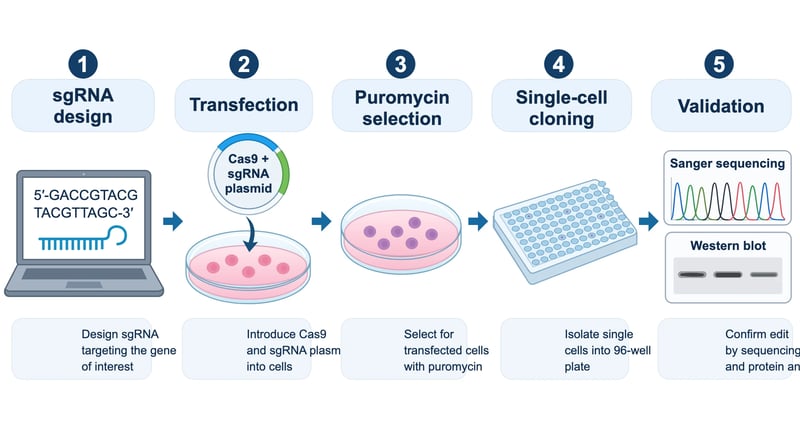
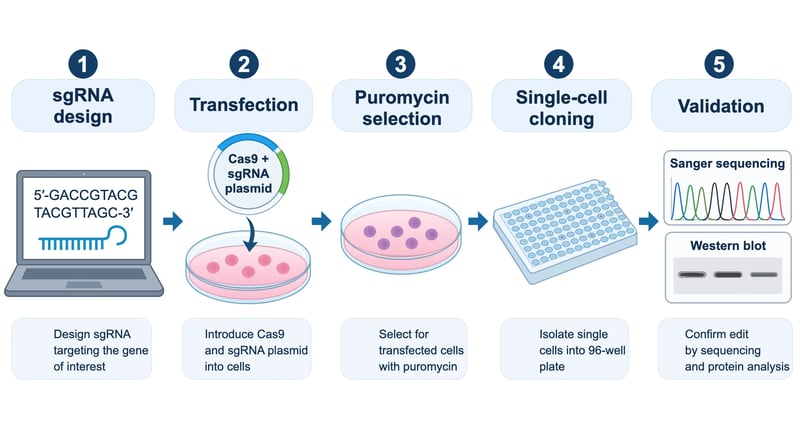
Each example opens exactly as the AI drew it, so you can watch the editor fit the labels back into their boxes.
- Open your own SVGAny SVG up to 2 MB. It stays in your browser.
What this SVG editor does to a figure
This SVG editor works on the picture, not on the code. To edit SVG online here, you open the figure and it appears as it looks, and every label in it stays real text, so you change a word by clicking on it rather than hunting through XML. Shapes stay shapes too: a box you recolour is still a box when you open the file in Illustrator, Inkscape, Figma or PowerPoint later.
It is built for figures: signaling pathways, lab workflows, model diagrams and labeled drawings, the kind of SVG you get from an AI figure generator, a plotting library or a paper's supplementary files. The usual job is small and specific. A label is misspelled, a caption runs past its box, a colour clashes with your poster, or one part needs to sit a little lower. Those are the edits it makes easy, and for labels it works as a simple SVG text editor: click, type, done.
It is not a drawing program. You cannot draw new shapes, edit the points of a path or add new text boxes. For that kind of work an SVG editor online with a pen tool, or a desktop app, is the better choice. Here the aim is to get an existing figure right in a minute and download it.
Fix labels that spill out of their boxes
Text in an AI-made figure is often placed by eye, and it shows: captions run past the shape they belong to. The editor fixes that on its own when a figure opens.
Each label is matched to the smallest filled shape it sits on. If it spills out, it is shrunk and nudged back inside, never below half its size and never enlarged, and every line in the same box shrinks by the same amount so a caption keeps one size. Across ten AI-generated test figures, 89 labels spilled out of their boxes and the fit moved 74 of them back when the figures opened. The rest you fix by hand in a few clicks.
Edit SVG files in three steps
Edit SVG figures with no install and no account; nothing leaves your browser.
- 1
Open a figure
Pick one of the examples above, or choose an SVG file from your computer (up to 2 MB). The file is read in your browser and is not uploaded anywhere. Scripts, embedded photos and animations are removed as it opens, so what you edit is the drawing itself.
- 2
Click, retype, recolour
Click a part to select it and click again to select the group it belongs to. Double-click a label to change its text. Use the side panel for fill and outline colour, font size, bold, and bringing a part forward or sending it back, or drag a part to move it. Undo and redo cover every step.
- 3
Download PNG or SVG
Export a PNG at 2x or 4x for slides and documents, or the edited SVG for further work in a drawing app. Export before you close the tab: edits to an example or a file you opened are not saved on our side.
Free SVG editor at a glance
- Price
- Free to edit, free PNG export
- PNGs carry a watermark until your first purchase.
- Account
- Not needed to open, edit or export a PNG
- Sign in to download the edited SVG.
- SVG download
- Included with any purchase
- Files
- Any SVG up to 2 MB
- Read in your browser, not uploaded.
- Removed on open
- Scripts, embedded raster images, animation
- Edits
- Text, fill and outline colour, font size, bold, layer order, delete, move, undo
SVG editor questions
Editing is free, and so is downloading a PNG, which carries a small watermark until your first purchase. Downloading the edited SVG itself comes with any purchase on SciDiagram, a plan or a credit pack. You can try every edit on the example figures before deciding.
No. You can use the SVG editor free online without signing up: open an example or your own file and edit straight away. An account is only needed to download the edited SVG, and to save versions of figures you generate with SciDiagram yourself.
No. When you choose a file it is read inside your browser and shown in the editor; it is not sent to us. That is also why edits to an opened file are not saved: download your PNG or SVG before you close the tab.
For safety the editor removes anything that is not plain vector drawing: scripts, embedded raster images (photos or screenshots placed inside the SVG), HTML inside foreignObject, and animation. Shapes, paths, gradients and text stay. If your figure relies on an embedded photo, edit it in a desktop app instead.
Yes, that is the main use. Double-click any label to retype it, then adjust its size or weight in the side panel. The automatic fit also shrinks labels that run past their boxes when a figure first opens, so many figures need only a word or two changed.
It does not draw new shapes, edit the points of a path, add new text boxes or merge files. It is meant for fixing an existing figure quickly. For drawing from scratch, a full online SVG editor or a desktop program such as Inkscape is the better tool.
They are from our own test runs of SciDiagram, each drawn by AI from a one-sentence description, and they open exactly as the model drew them. If you want a figure of your own, describe it on the SciDiagram homepage and it opens in this same editor when it is ready.
More free science tools
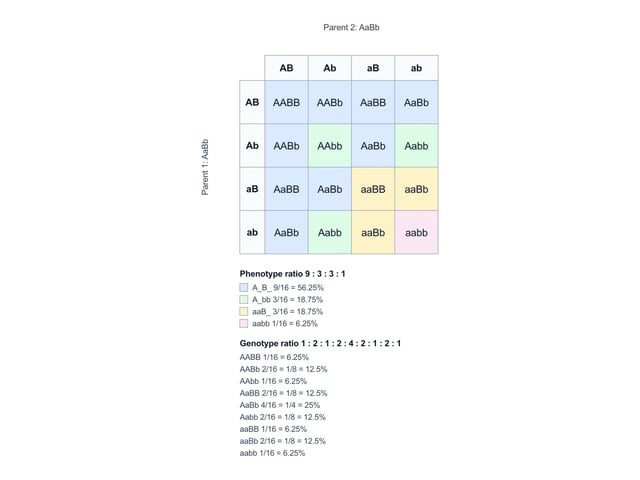
Punnett square generator
Enter two parent genotypes for one gene or two. The Punnett square, the genotype and phenotype ratios and each probability update as you type. Free, with no account and no credits; download the square as SVG or PNG.
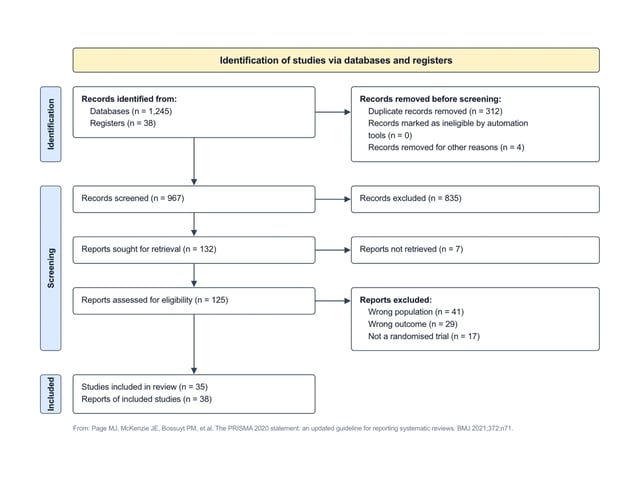
PRISMA flow diagram generator
Fill in the counts from your search and screening. The PRISMA flow diagram lays itself out, checks that every box adds up from the one before it, and downloads as an editable SVG or a PNG. Free, with no account.